📖 User Guide
This user Guide is updated regularly. It allows you to enter in the details to learn how to use the editor.
|
📄 View manual in PDF format Listen in voice mode :  ActorsLast update : January 04, 2026🔗 AnimationYour character now has an appearance that suits you, so the next step is to add some animations.The "Animation" panel allows you to assign only the animations you want to your actors. Here is what the panel looks like: 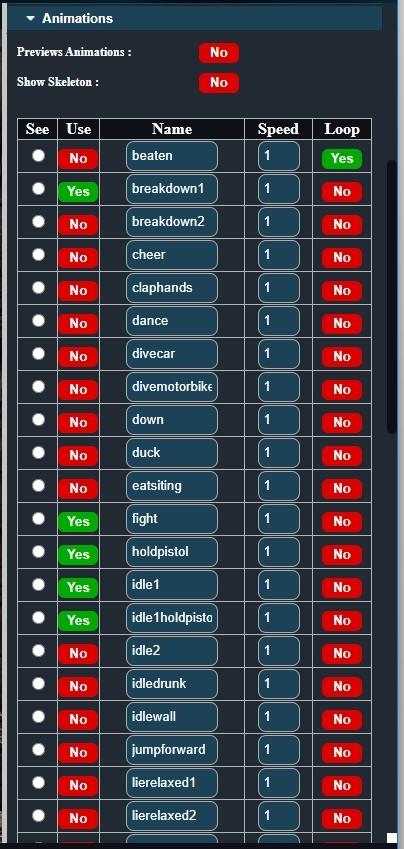
The first two buttons, Preview animation and Show skeleton, are very useful. The first one lets you preview animations in real time, while the second one displays the character’s skeleton. 🦴 Before choosing your animations, you will probably want to see them in action. So start by enabling Preview animation. 👀 Then, in the list, check the small radio boxes and you will see the character playing the selected animation in the 3D view. If you like the animation, click the red "No" button to switch it to green "Yes". The animation will be added to the character when you save it. ✅ Animation names cannot be modified. They are provided for reference only and are used by the game if required. Below is an example of an animation preview: 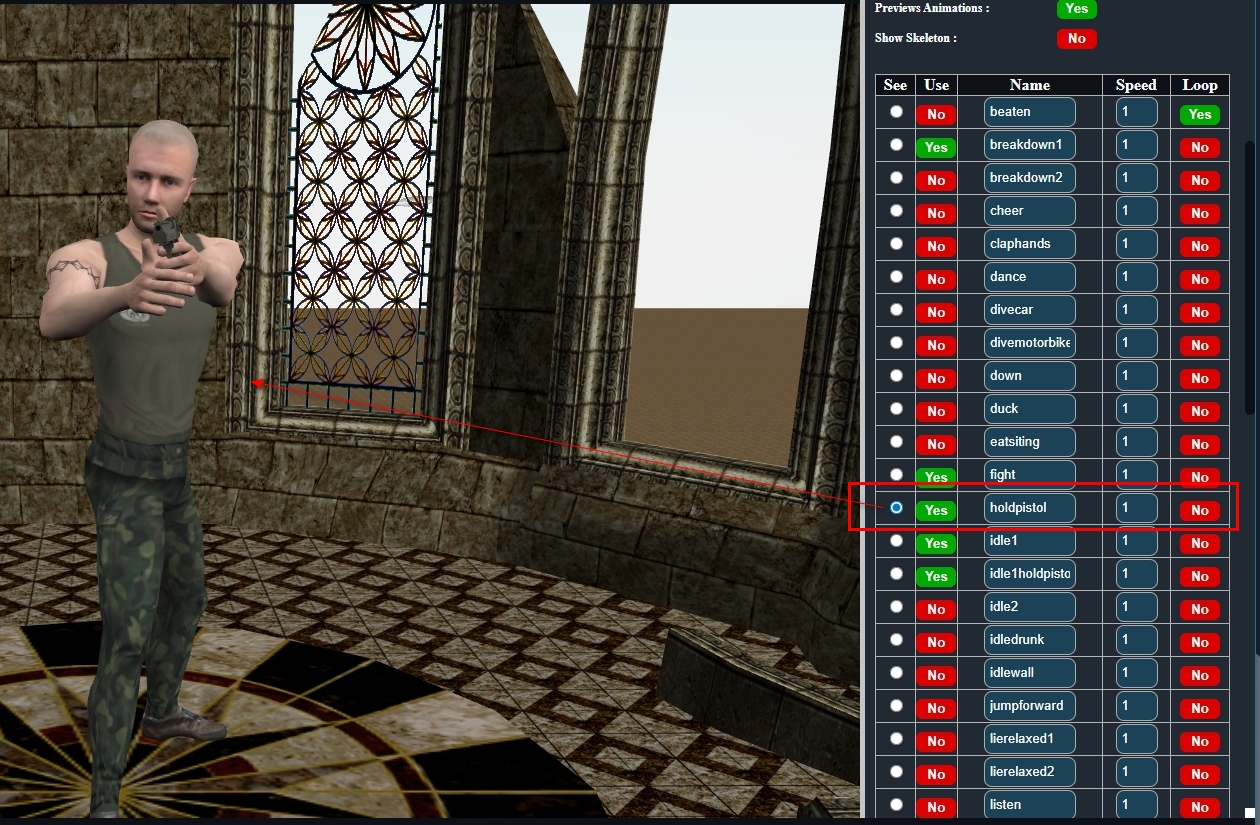
Adding animations is straightforward: preview the animation and enable it if you want the character to use it. 🎬 Next, whether for a player character or an enemy, you will probably want to assign a weapon to the character’s hand. We will cover this in the following chapter. 🔫 |