📖 User Guide
This user Guide is updated regularly. It allows you to enter in the details to learn how to use the editor.
|
📄 View manual in PDF format Listen in voice mode :  ActorsLast update : January 04, 2026🔗 Customize actorYou can dress your actor and give them the appearance you want.To do this, open the expandable "Customize" panel: 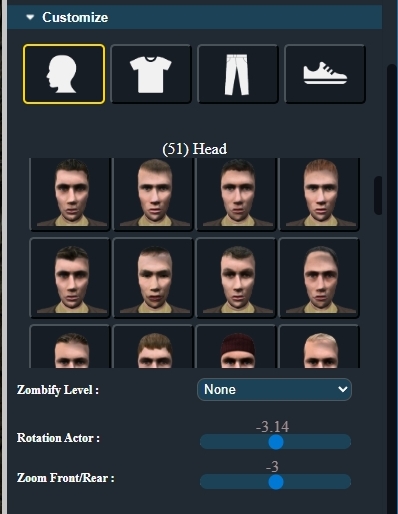
From this panel, the head is selected by default. You can hover over the different heads to preview a larger image, as shown below: 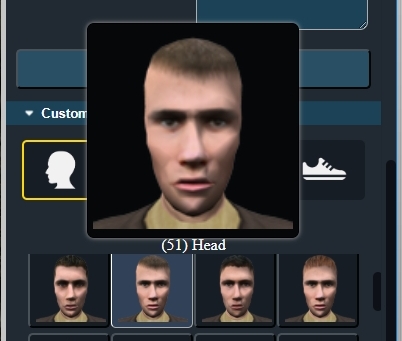
By clicking on an image, the new face is applied instantly to your character in the 3D view. You can do the same with the body, pants, and shoes. 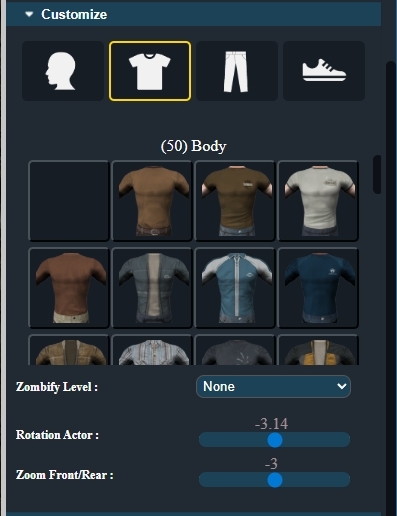
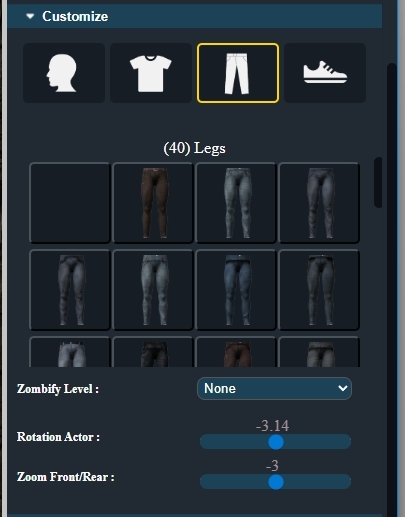
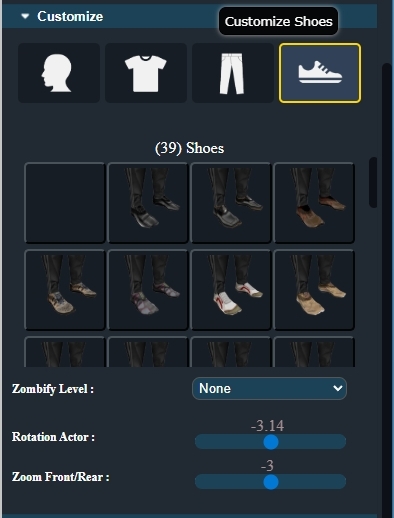
At the top, you will find several options: Zombify Level, Rotation Actor, and Zoom Front/Rear. The Zombify Level option allows you to turn your character into a zombie by choosing a dirt level. This is useful to create visual variations if you design multiple zombies. 🧟♂️ The Rotation Actor option lets you view the character from the front, side, or back within the 3D scene. Finally, Zoom Front/Rear allows you to move closer to the character when needed. This is especially useful for precisely positioning a weapon in the character’s hand. 🎯 Your character now has the appearance you want. However, you still need to assign animations that will be useful in the game. 🎬 Depending on the type of character, you should only select the necessary animations. For example, if the character is a zombie or another enemy, you will never need swimming or jumping animations. 🚫🏊♂️🤸♂️ In the next chapter, we will see how to work with animations in detail. |