📖 User Guide
This user Guide is updated regularly. It allows you to enter in the details to learn how to use the editor.
|
📄 View manual in PDF format Listen in voice mode :  ActorsLast update : January 04, 2026🔗 Add weaponThis panel is optional, but it is used if you want a character to hold a weapon in their hand, either by default or as an item they can pick up.The goal here is to choose a weapon and position it correctly in the character’s hand. To do this, two panels are used: Weapon and Transform Weapon. When both panels are open, they look like this: 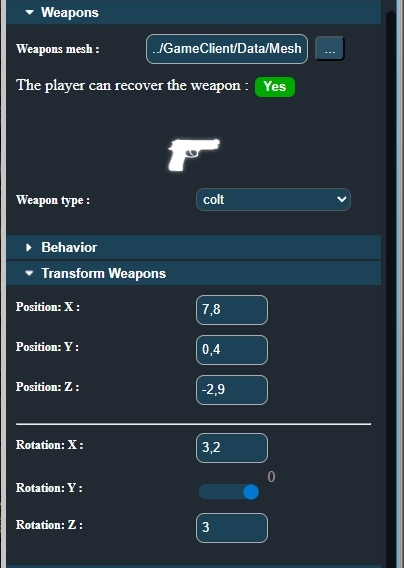
The "Weapon mesh" refers to the 3D object. Click the "..." button to open the library, allowing you to drag and drop an object that will be placed in the character’s hand. 🗂️ At this stage, the object in the hand will not be positioned correctly. You will need to use the "Transform Weapon" panel to adjust it properly. ✋ Next, "The player can recover the weapon" determines whether the player can pick up the weapon. If enabled, the weapon will not be in the character’s hand by default in the game, but can be collected during gameplay. 🎒 Then, the "Weapon type" dropdown allows you to choose the type of weapon. This will display a small icon representing the weapon in the game’s graphical interface. 🗡️ Let’s go back to the "Transform Weapon" panel. Its purpose is quite self-explanatory. Here, you simply reposition the weapon along the three axes, using position and rotation controls. 🔄 Once the weapon is correctly placed in the character’s hand the way you want, you can move on to the final step: behaviors. ⚙️ |