📖 User Guide
This user Guide is updated regularly. It allows you to enter in the details to learn how to use the editor.
|
📄 View manual in PDF format Listen in voice mode :  GUILast update: January 08, 2026🔗 Create GUITo create a user interface, you first need to understand the two concepts: UI Scene and HUD Scene. 🖥️BabylonJS’s GUI rendering engine uses dynamic textures to draw all 2D elements. The UI Scene is essentially this dynamic texture that contains all interface elements. However, at some point, this texture can become very crowded with different elements, which is why HUD Scenes can be created. 🧩 These are like sub-dynamic textures that allow you to separate different interface modules. You can navigate from one HUD scene to another, but ultimately what is saved is the UI Scene — the complete dynamic texture containing all HUD scenes. This setup allows you to create very complex interfaces while keeping things organized. 📂 Just remember this: - UI Scene: the complete dynamic texture. - HUD Scene: separate sub-dynamic textures, but still linked to the UI Scene. 🔗 So, the first thing to do is to create a UI Scene: 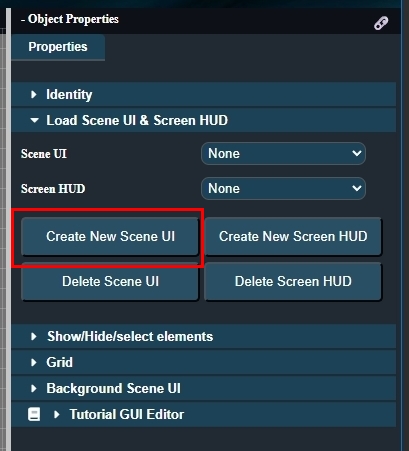 Next, HUD scene creation is optional. You can choose to create everything directly on the UI Scene. That’s what we’ll do in this manual to keep it simple. ✅ Once your UI Scene is created and named, each UI Scene must be assigned to a level. Levels correspond to a 3D scene, which may or may not include terrain. To assign a UI Scene to a level, use the "Background Scene UI" option: 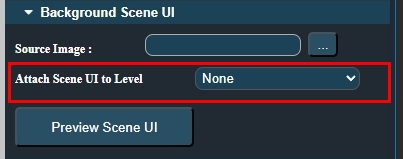 Once done, you can add buttons to the scene and set a background with a texture. 🎨 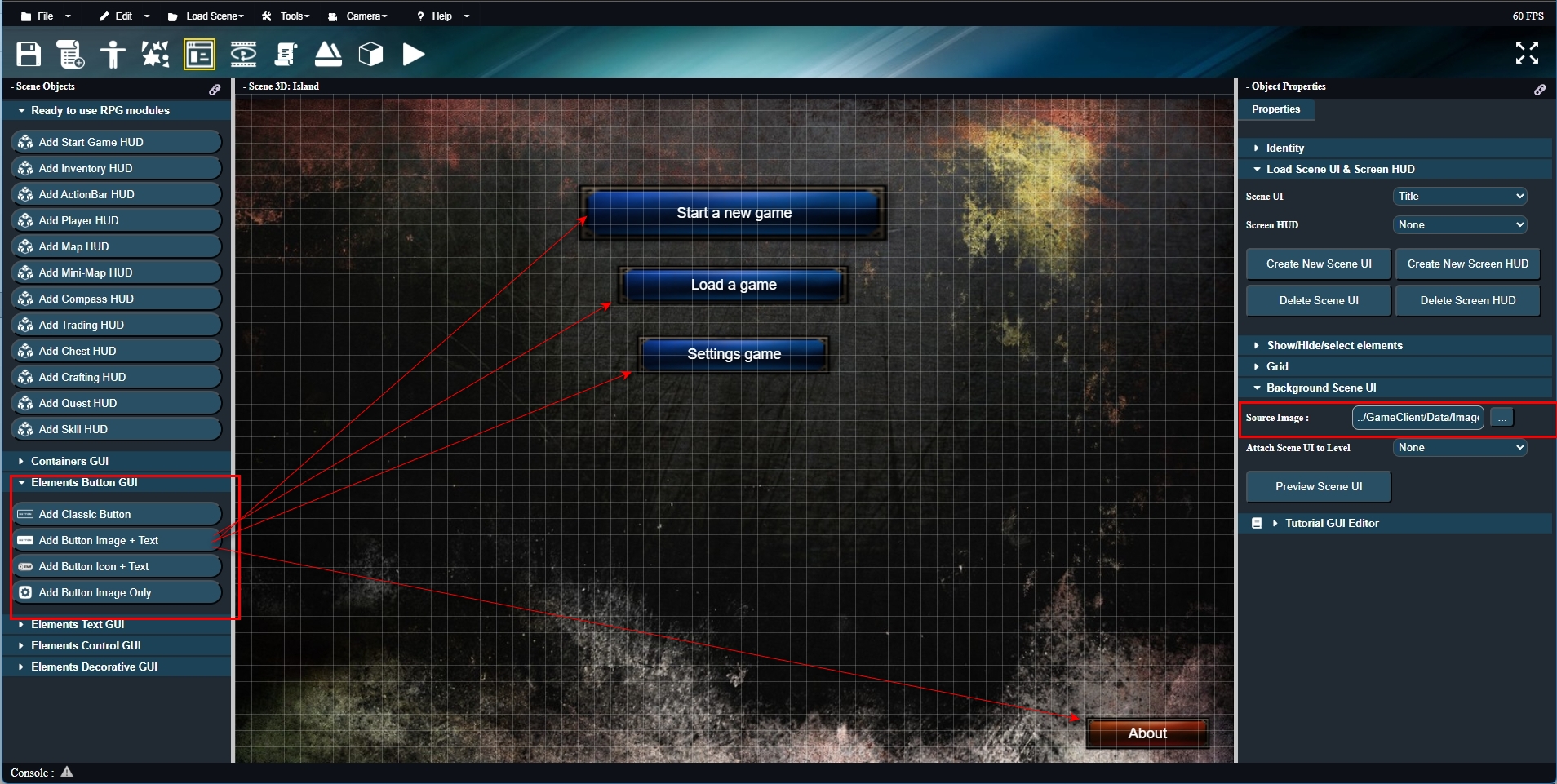 Next, select elements to see a selection frame appear around them: 🔲 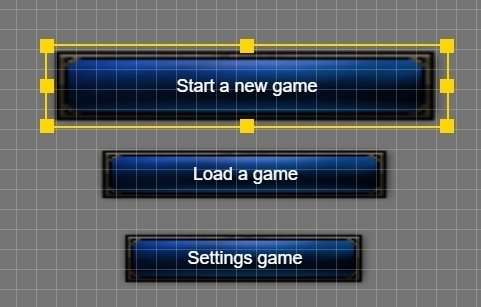 Each selection frame has handles on each corner to resize the object. Pointing the mouse in the center allows you to move the element. When an element is selected, its properties are displayed: ⚙️ 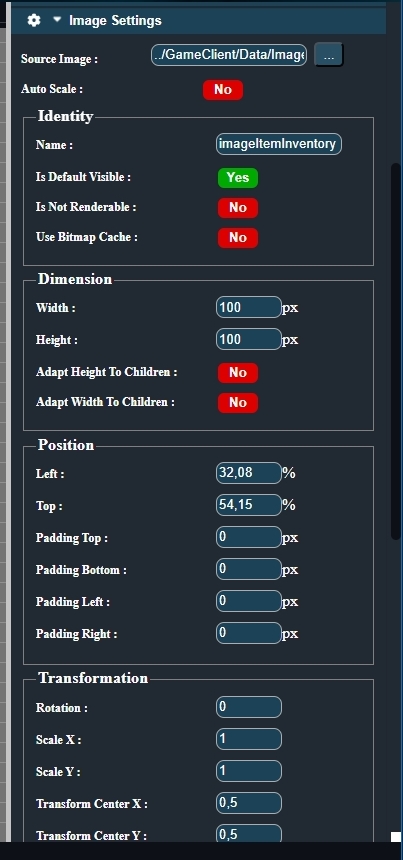 Each property can be adjusted to your liking. ✨ You now have the basics of using the GUI editor. But there are two more handy features: First, the grid. You can increase or decrease the number of squares. This grid helps align objects both horizontally and vertically. 📐 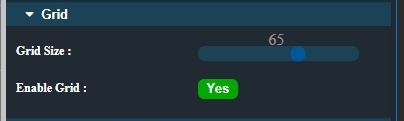 You can also clone or delete elements. This panel is also where you save your interface. 💾 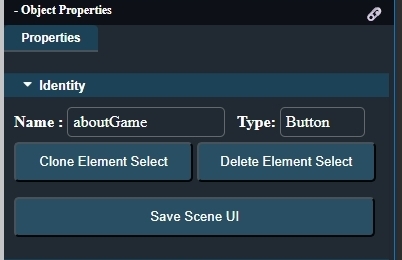 And that’s it! You now know everything you need to get started. The GUI editor may still have some bugs and will continue to be improved. 🛠️ Please feel free to report any issues you encounter. Developing this editor was particularly complex, but it’s incredibly powerful and enjoyable to use. 🎉 |